Miniviz Quick Start
Overview
- Miniviz Quick Start
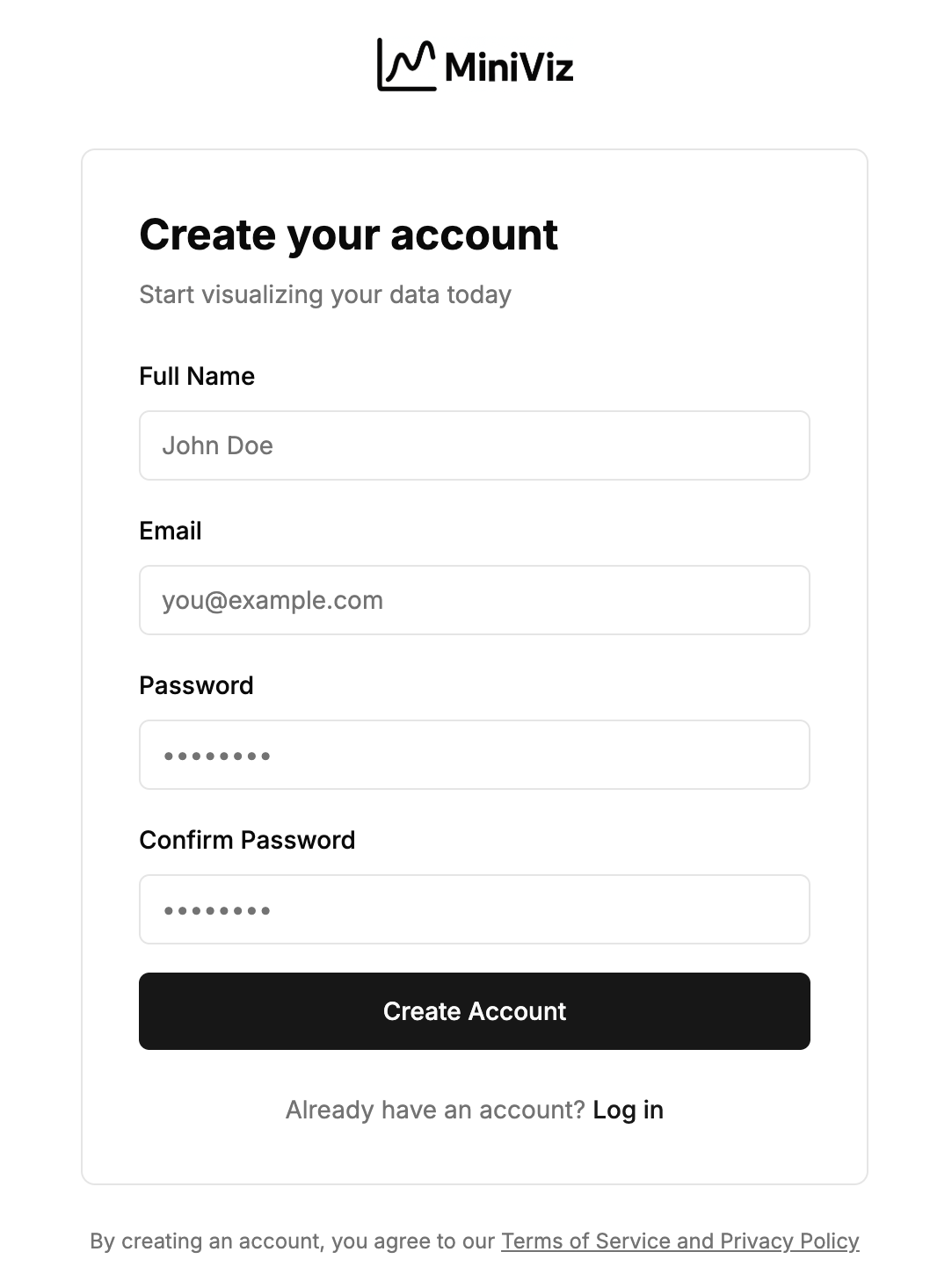
1. Create Miniviz Account / Login
Enter your email address and password to create a new account, or log in with an existing account.
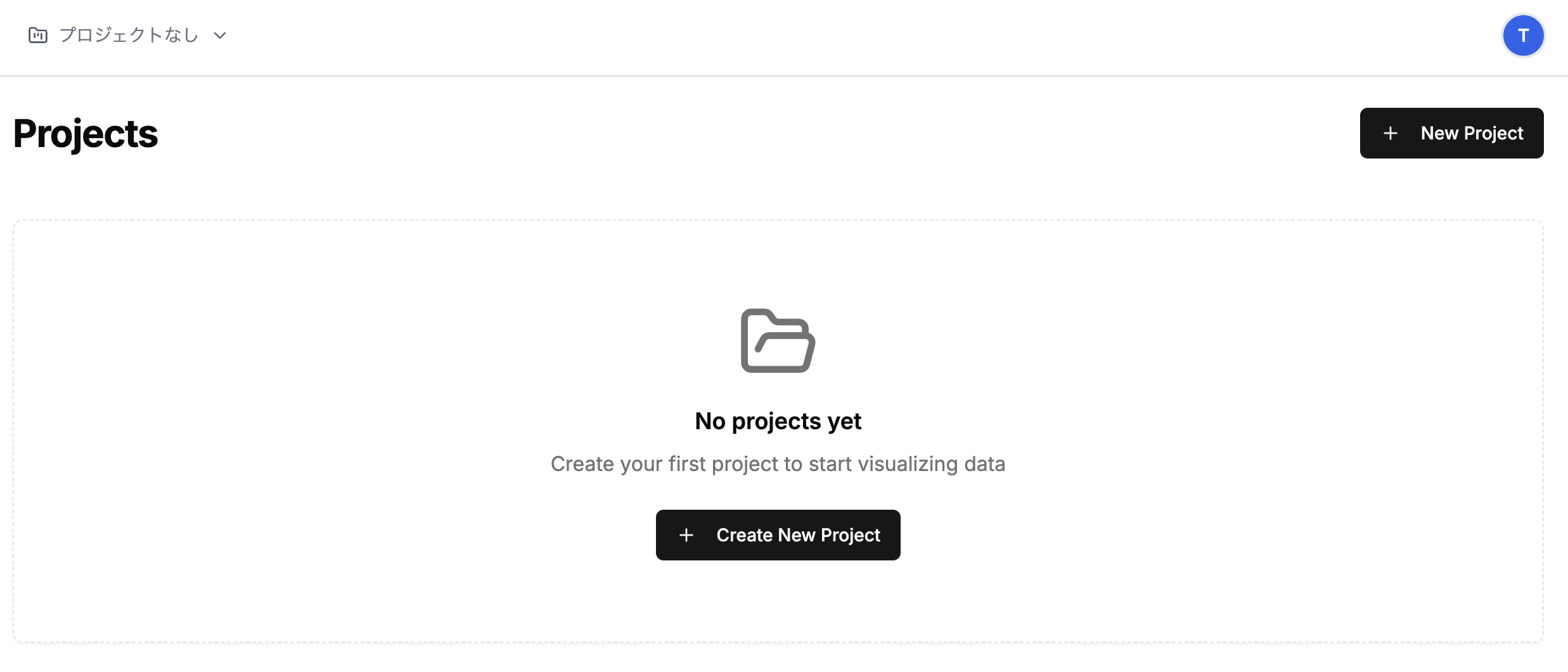
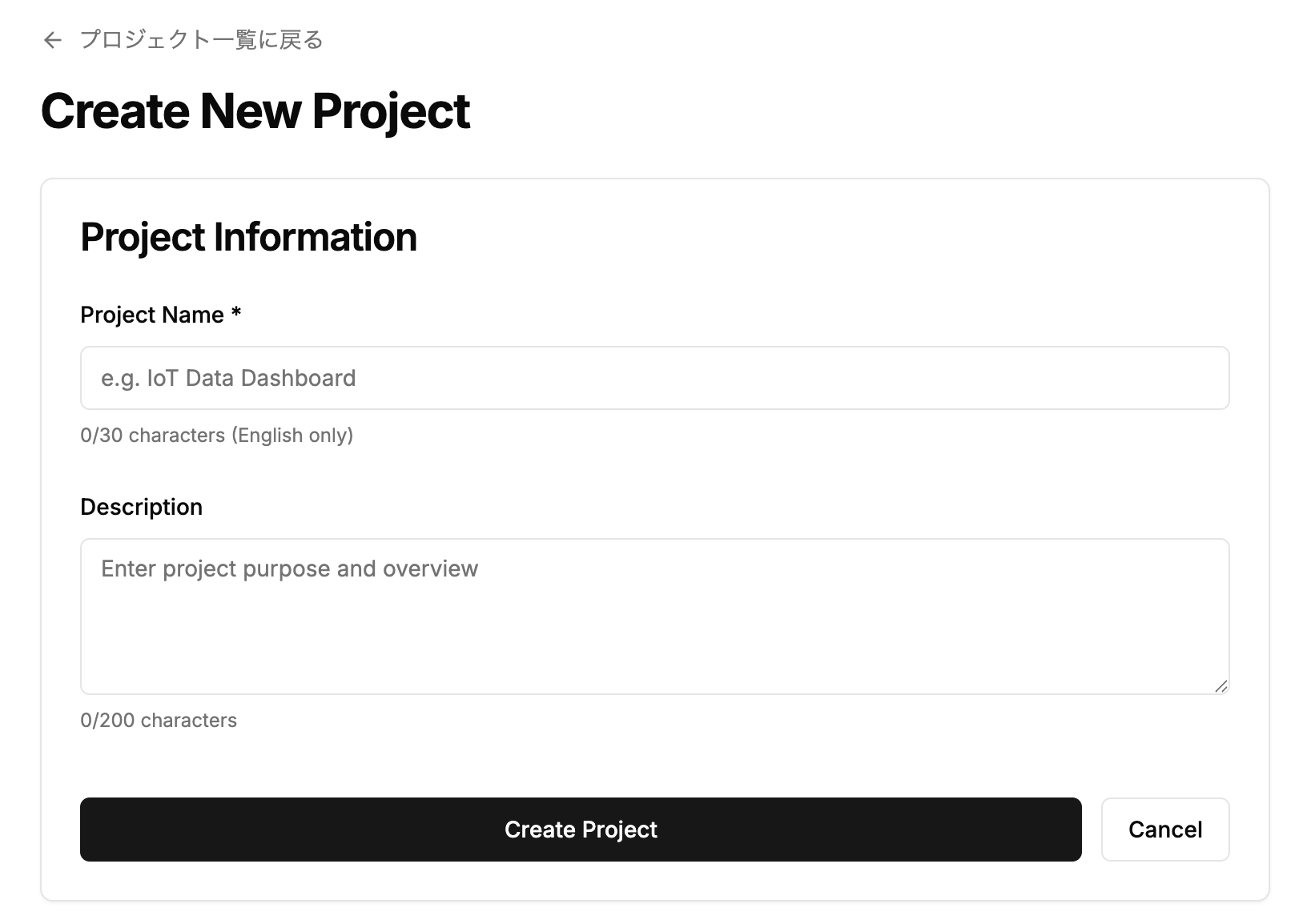
2. Create Project
Create a project to manage your data.

Copy Project ID and Token
Copy the Project ID and Token as they will be needed in the next step. Click the token icon on the right 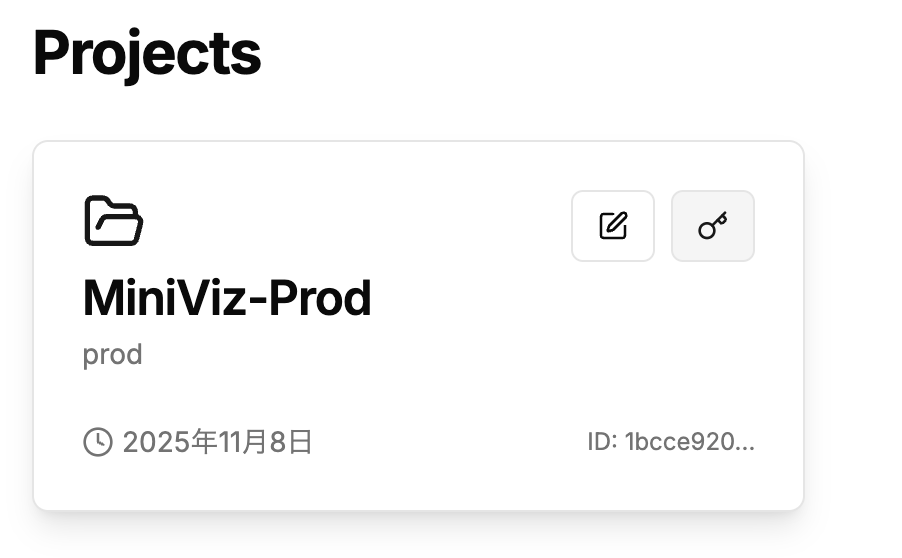
The token copied here will be used on the device side. 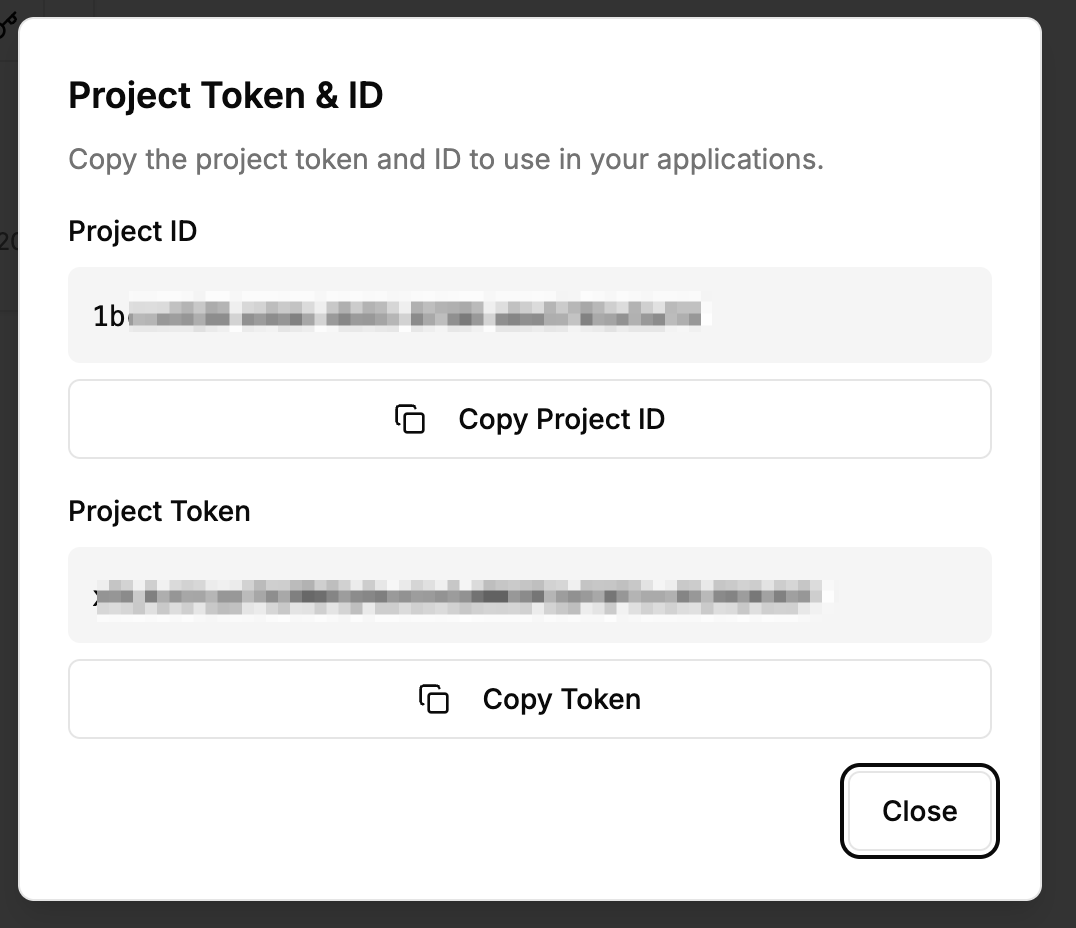
3. Send Data (Device Side)
Send data from the device side. We recommend first testing data transmission with curl commands or a simple Python script.
API Endpoint
POST https://api.miniviz.net/api/project/{project_id}?token={token}
Request Overview
Data transmission to Miniviz API uses the POST method. The request body is in JSON format.
Request Body
| Field Name | Type | Required | Description |
|---|---|---|---|
timestamp | number | Yes | Transmission time (UNIX time in milliseconds) |
label_key | string | Yes | Label to identify the source, such as device name or location |
payload | object | Yes | Actual measurement values to send. Specify any metric name as the key, and a number or string as the value |
payloadsupports numbers and strings. You can freely add any metrics.
Request Example
{
  "timestamp": 1731129600000,
  "label_key": "raspberry_pi_home",
  "payload": {
    "temperature": 25,
    "humidity": 55,
    "switch": "true",
    "system_status": "running"
  }
}
curl Command (Linux/MacOS)
timestamp_ms=$(( $(date -u +%s) * 1000 ))

curl -X POST \
  "https://api.miniviz.net/api/project/{project_id}?token={token}" \
  -H "Content-Type: application/json" \
  -d "{
        \"timestamp\": ${timestamp_ms},
        \"label_key\": \"Local_PC\",
        \"payload\": {
          \"temperature\": 25,
          \"humidity\": 55,
          \"switch\": \"true\",
          \"system_status\": \"running\"
        }
      }"
Python
Sample code is available at the following link. Python Sample 1
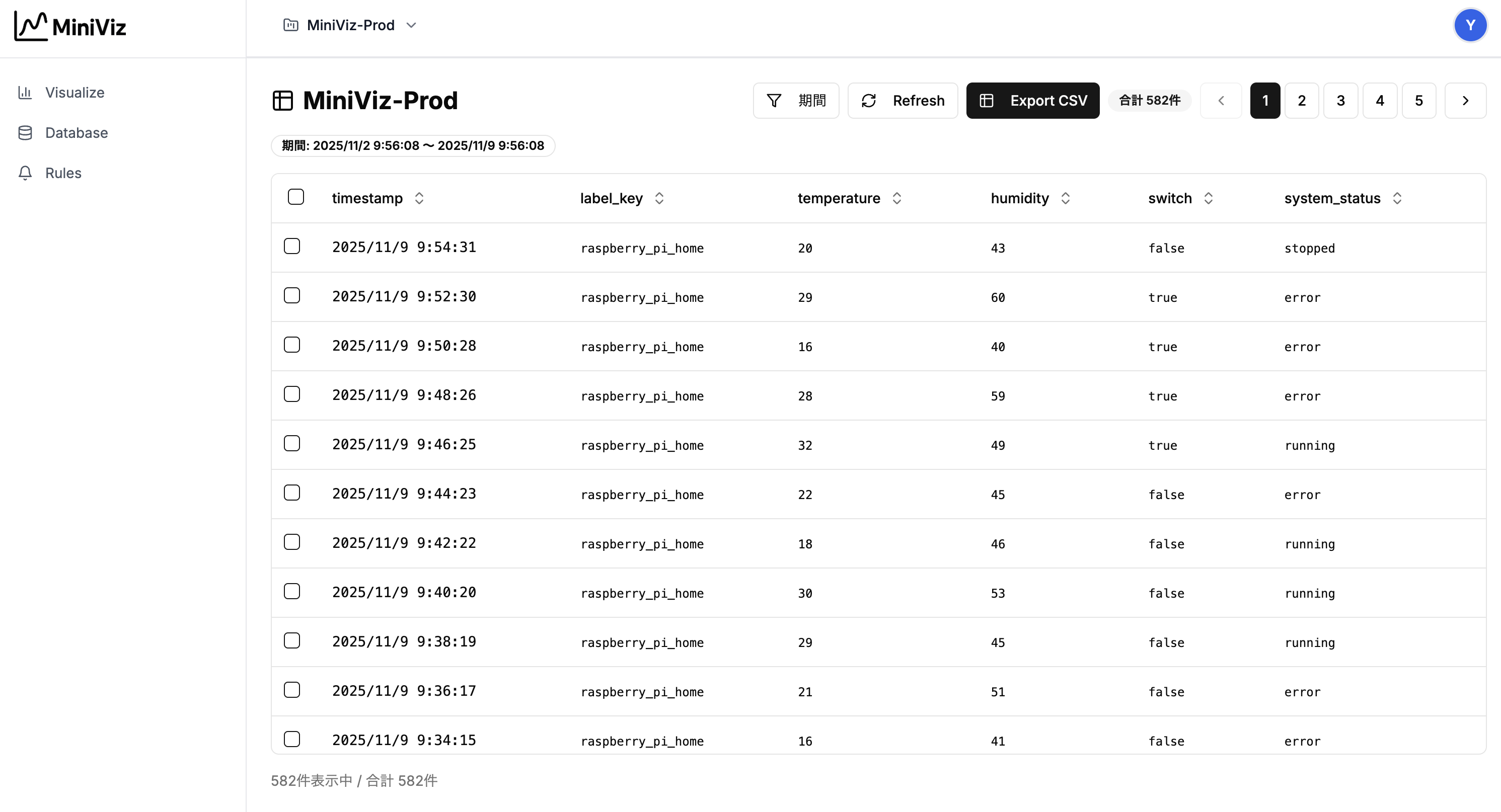
4. Check Data (Database)
Check data from the Database menu. Sent data is saved in the database. ※If data is not displayed here, data transmission has failed. Please check the device-side logs again.※
5. Create Charts
Create charts from the Visualize menu. You can create charts and configure chart types and data display formats.
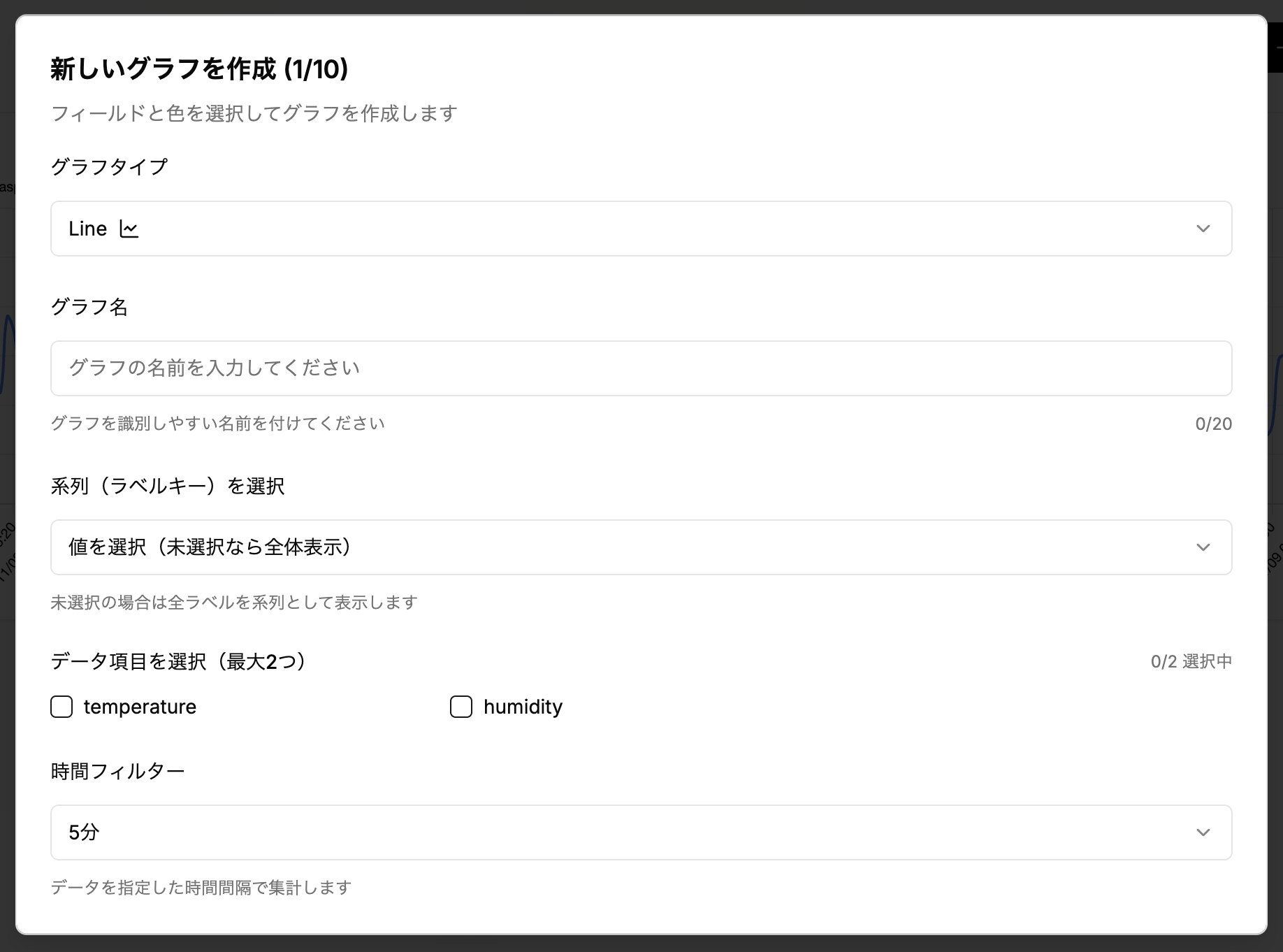
After creating a line chart 
6. Notification Settings
Configure notification destinations such as Slack and Webhooks. Configure notifications from the Rules menu.

Slack Notification Settings
Configure Slack notifications. Enter the Slack Webhook URL. 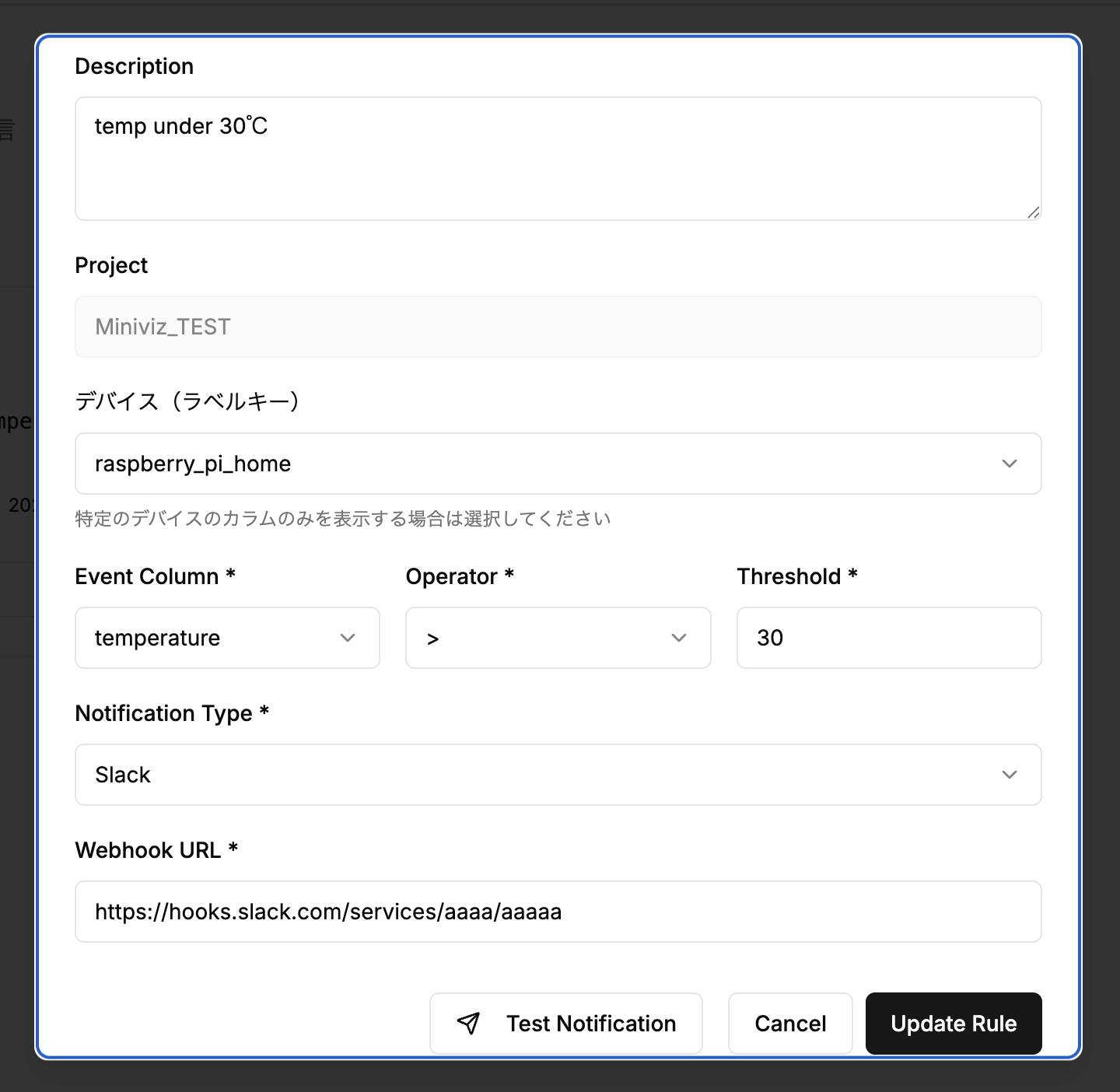
Notifications will be sent when the set threshold is exceeded. 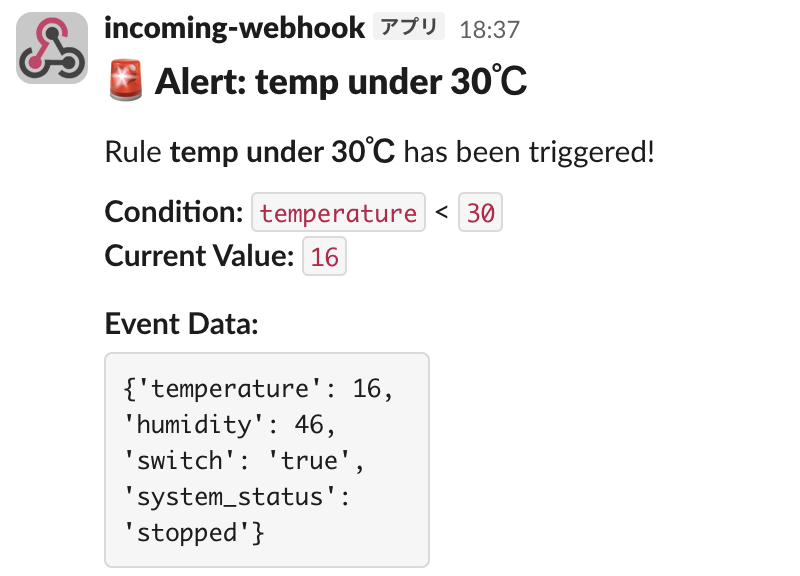
7. Image Transmission
Pro plan users can send images using the image transmission API.
For details, see API Endpoint (Image).